Installing APC
For Windows x64 and macOS (Apple Silicon), with Blender 5.2.1 LTS. Installation takes a few minutes.
Download the ZIP
Open download page and save the APC extension ZIP. Do not extract the archive: Blender installs the extension directly from it.
Install the extension
In Blender 5.2.1 open Edit → Preferences → Get Extensions. In the section Repositories make sure the custom repository is enabled. Then select Install from Disk, specify the downloaded ZIP and enable APC if Blender does not enable it automatically.
If there is no Install from Disk button, first enable the custom repository next to System in the Repositories settings.
Get the key
Register, confirm your e-mail using the link from the letter and sign in. In your profile, click “Request a trial key (2 weeks)” and save the key shown: it is shown once.
A copy of the key is emailed to you when it is issued.
Activate APC
Open 3D Viewport in Blender, click N and find the APC panel. Expand the Result section and click Engine Settings. This button opens the program window with license settings.
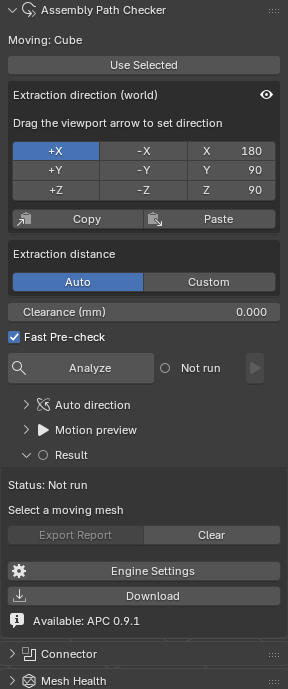
In the program window, enter the key, open the license agreement, check “I accept the terms of the license agreement” and press "Activate". Once the license name and term appears, return to Blender and launch Analyze.
An Internet connection is required for the first activation.